> For the complete documentation index, see [llms.txt](https://faqs.thorwallet.org/llms.txt). Markdown versions of documentation pages are available by appending `.md` to page URLs; this page is available as [Markdown](https://faqs.thorwallet.org/how-to-guides/how-to-provide-liquidity.md).
# How to Provide Liquidity?
Detailed guide on how to provide liquidity in THORWallet. Follow the steps to start providing liquidity and earning yield on THORWallet.
{% hint style="danger" %}
Liquidity provision to THORChain or MayaChain pools is no longer available through the THORWallet app. However, if your wallet already has existing liquidity positions, you can still access and manage them from within the app.
{% endhint %}
### How to Provide Liquidity
Providing liquidity to a pool allows you to earn rewards. Follow these steps to add liquidity using the app:
### 1. Navigate to Liquidity Pools
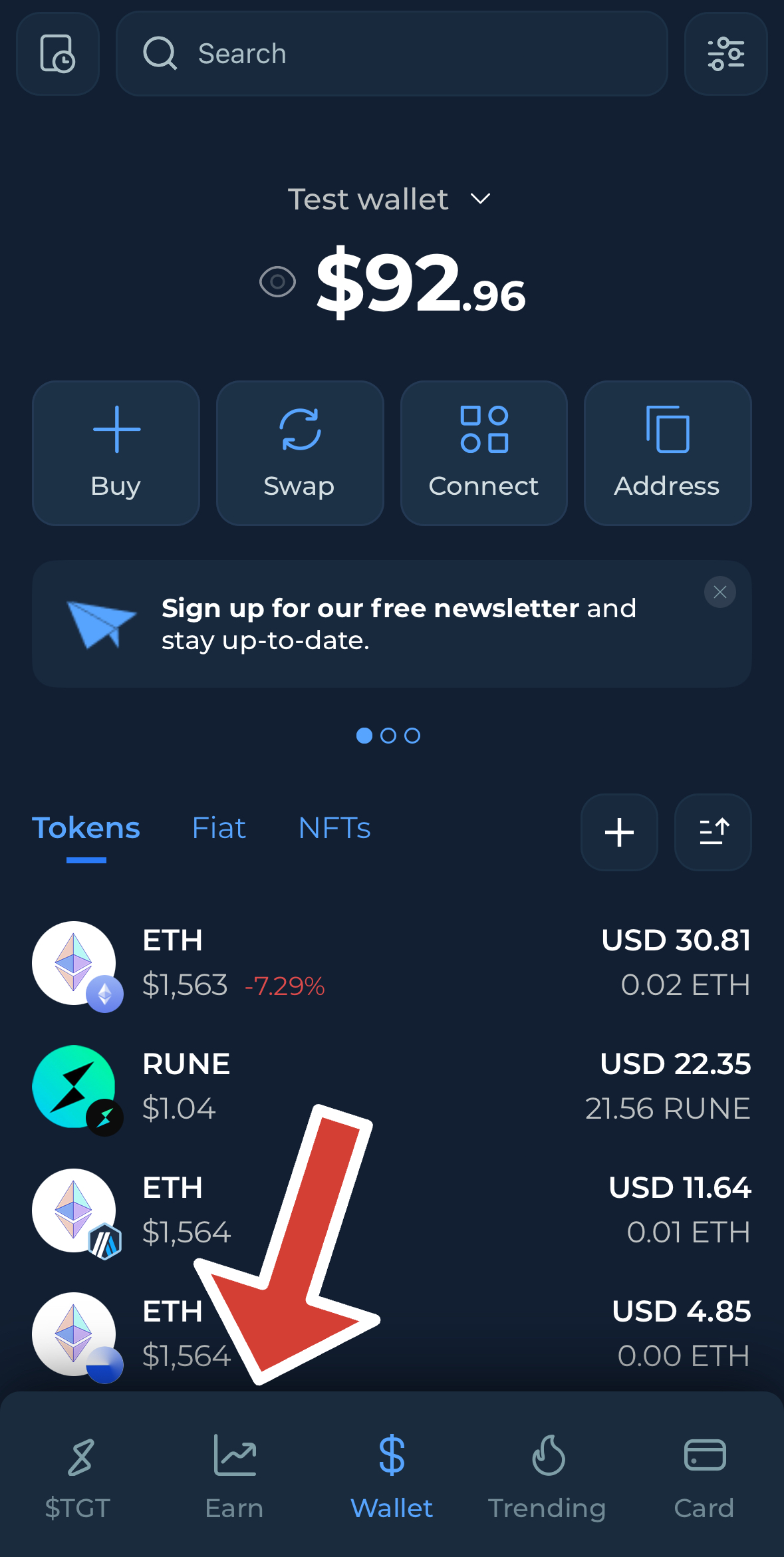
* Open the app and go to the **Earn** tab.
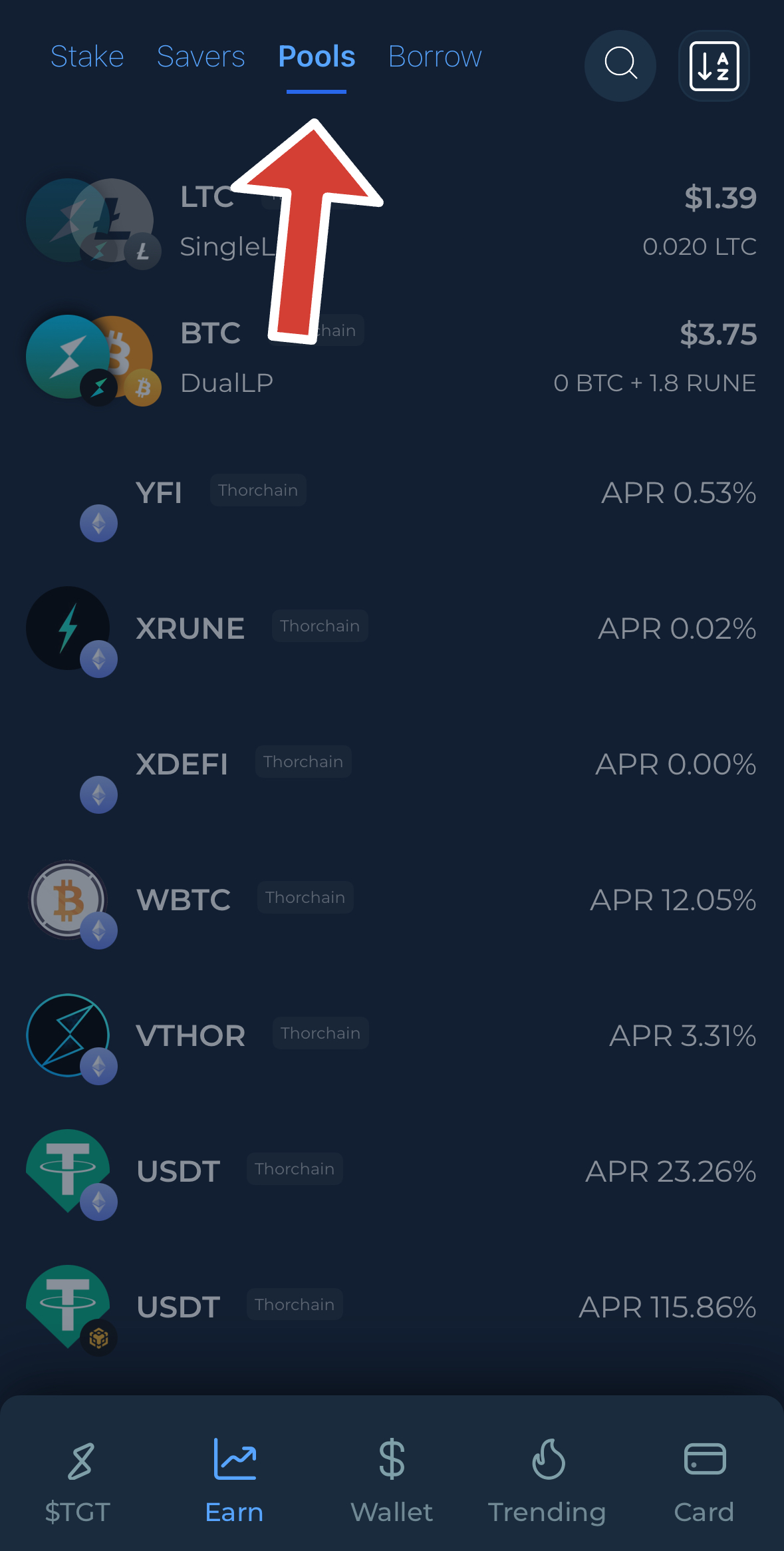
* Select **pools** to see the available pools.
### 2. Choose a Pool
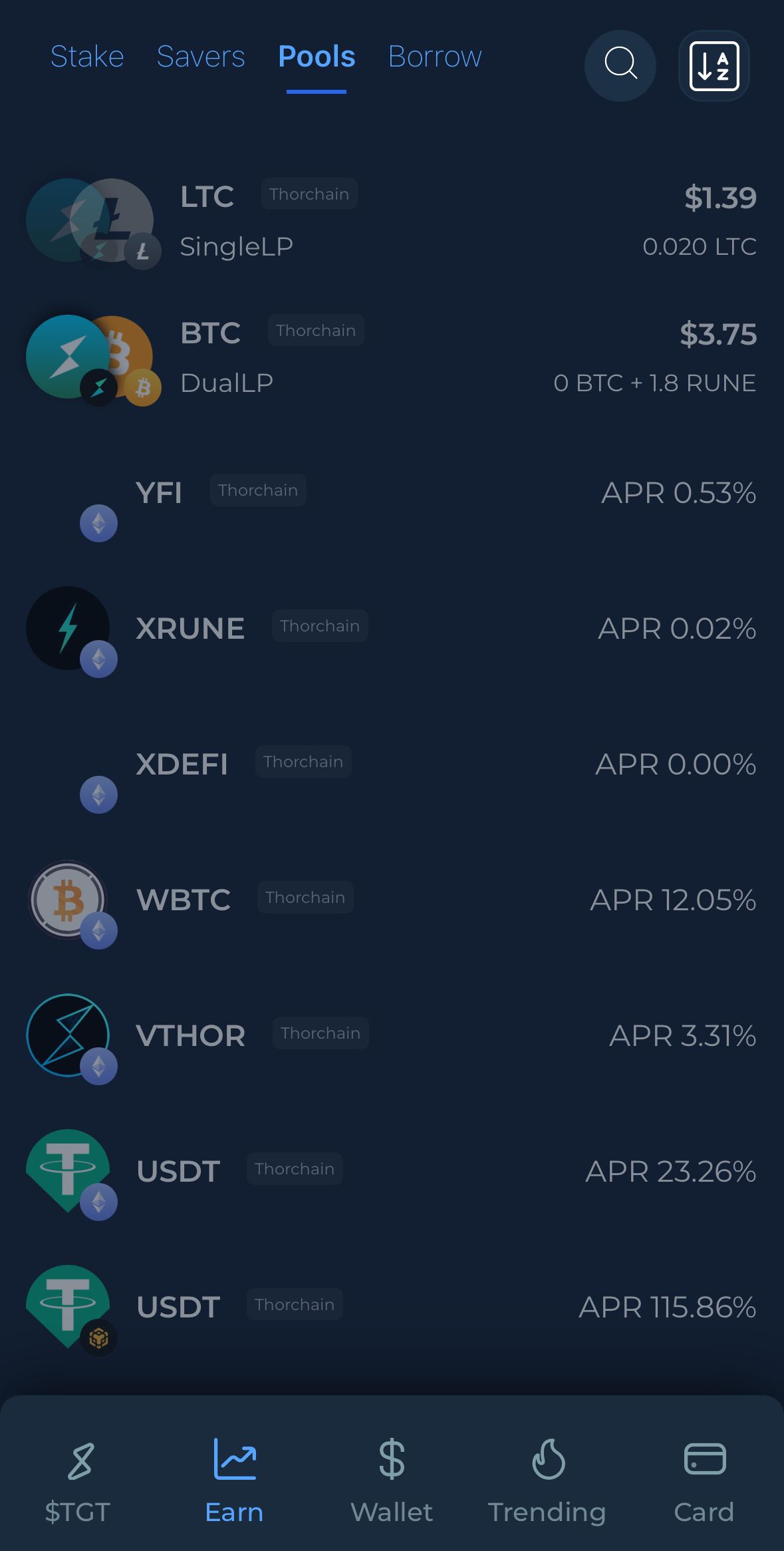
Browse the list of available pools, each showing its **current APR** and other key details.\
You can **sort or filter** pools based on different criteria (e.g., APR, volume, asset).
👉 Select the pool you want to provide liquidity to — for example, **RUNE** this case.
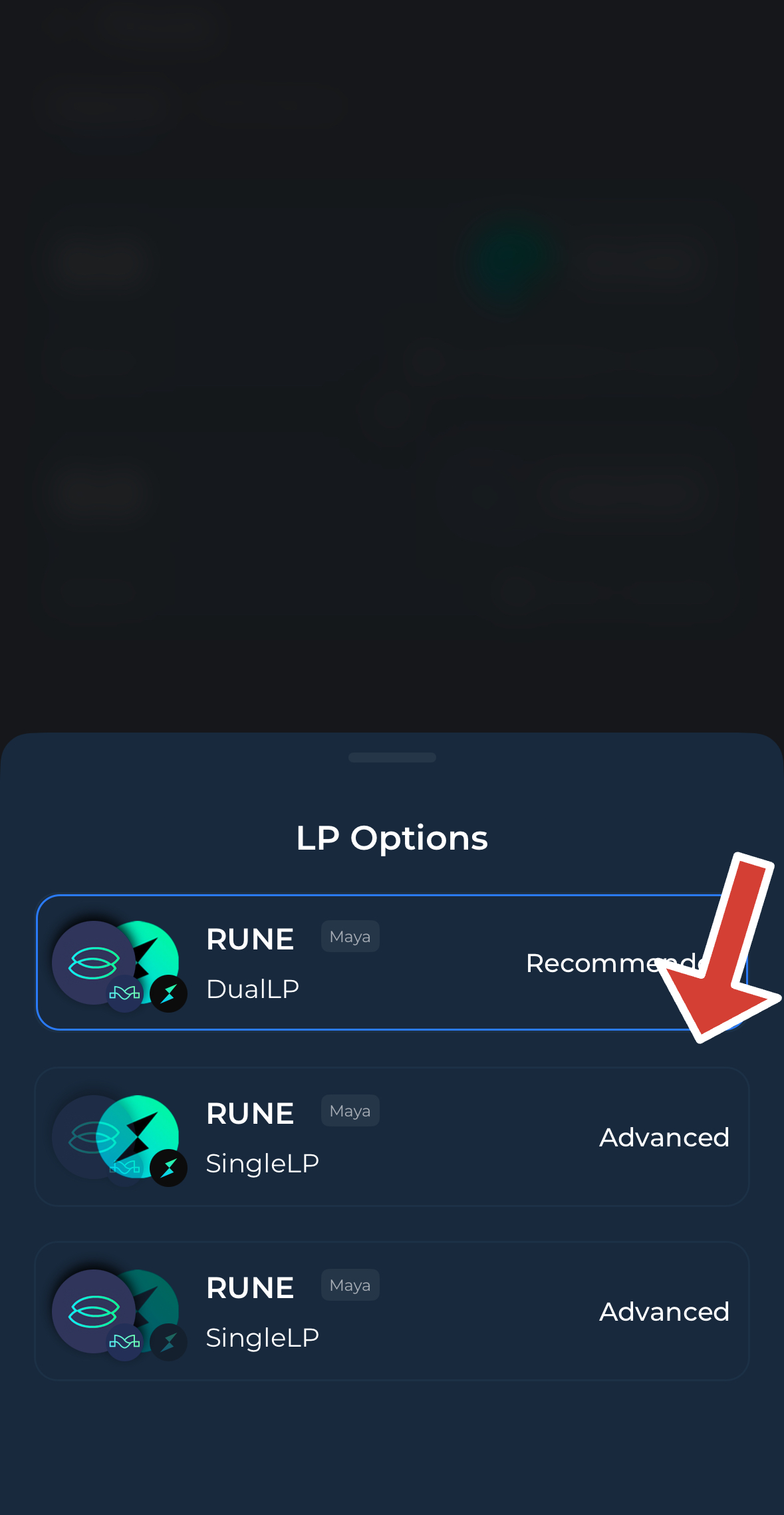
### 3. Select Deposit Method: Symmetrical or Asymmetrical
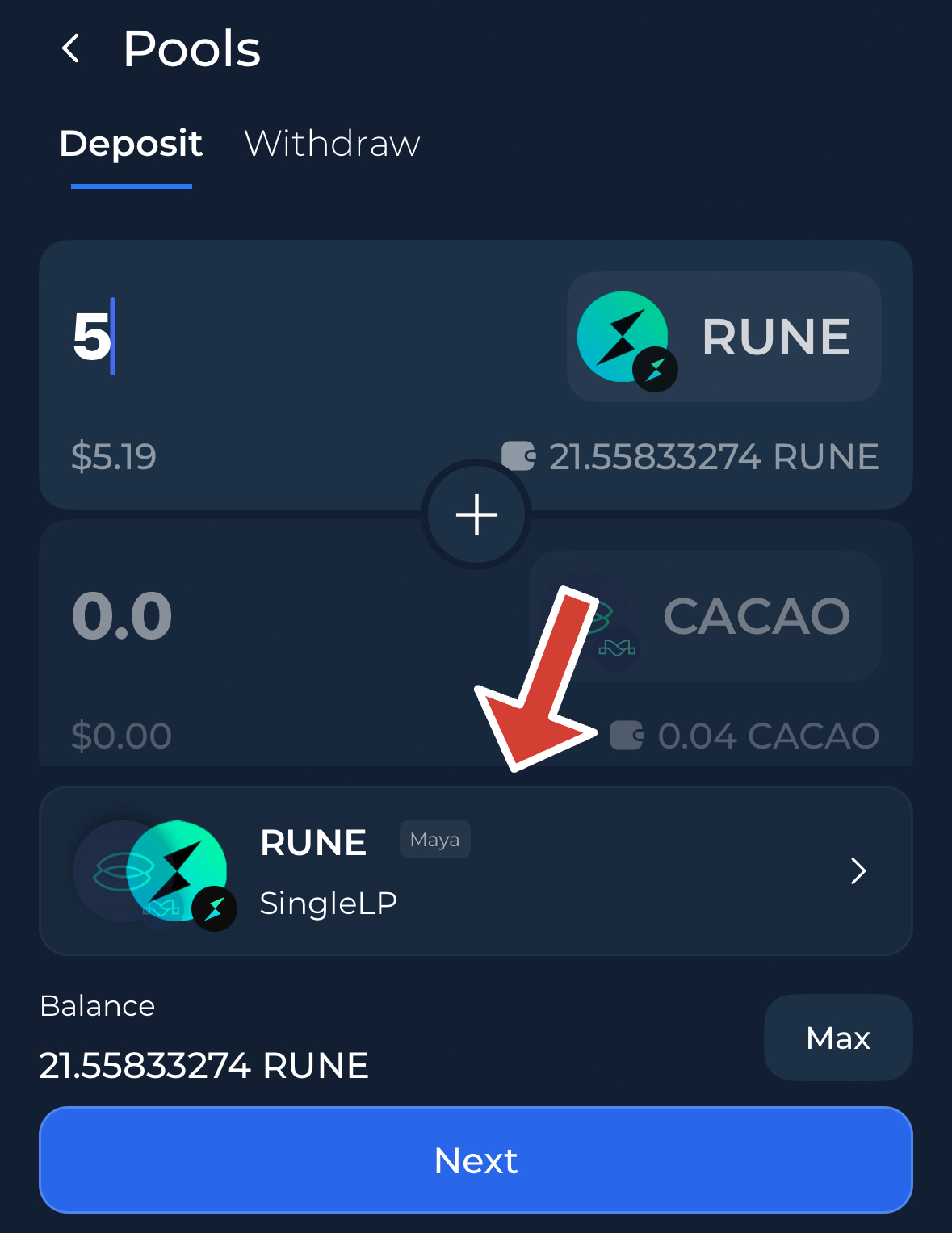
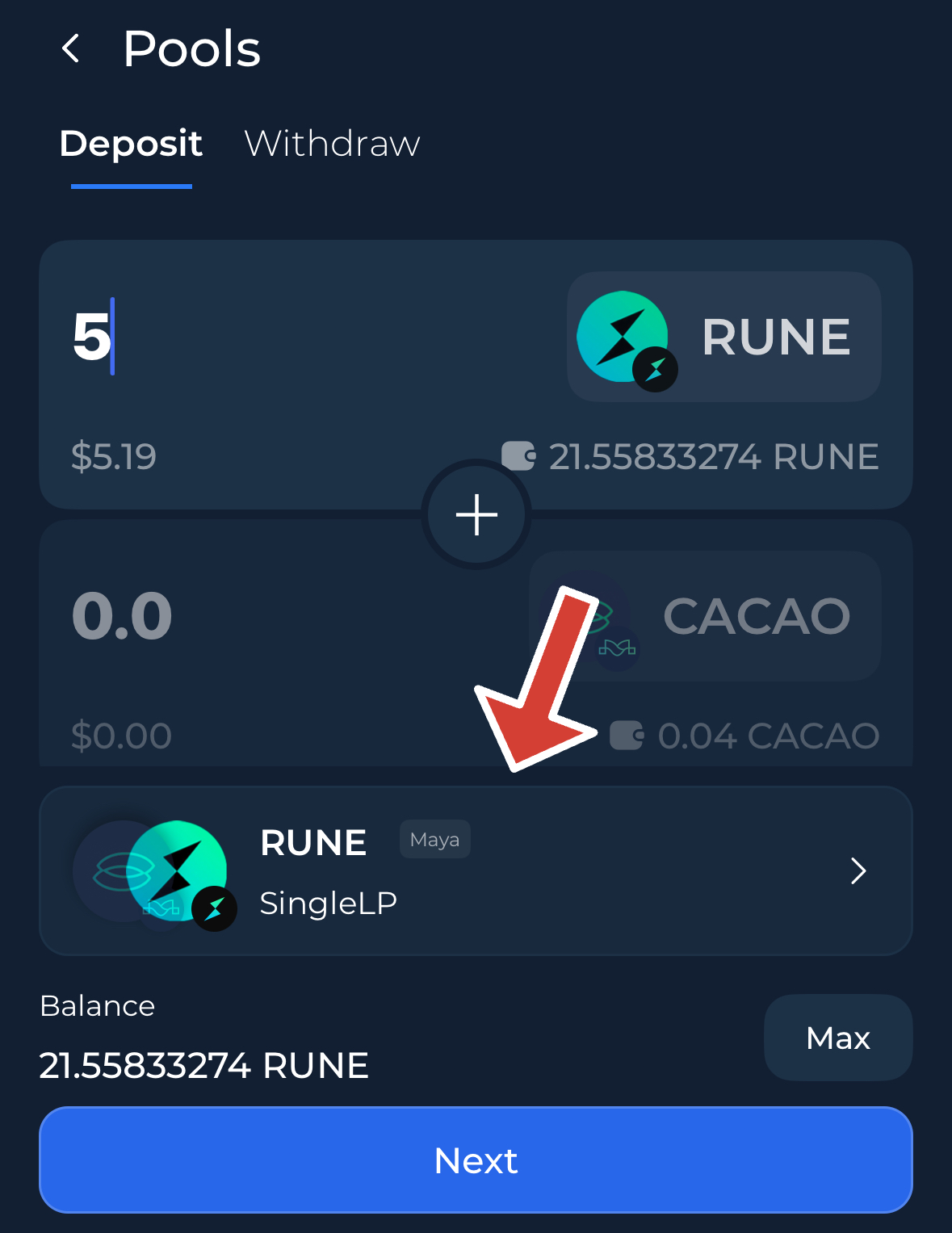
* Choose whether you want to deposit **Symmetrically** (both assets of the pool) or **Asymmetrically** (a single asset).
* For this example, we have selected **Asymmetrical Deposit**.
* enter the amount of the asset you want to deposit into the pool.
* Once you've set the amount, tap **next.**
### 4. Review and Confirm the Transaction
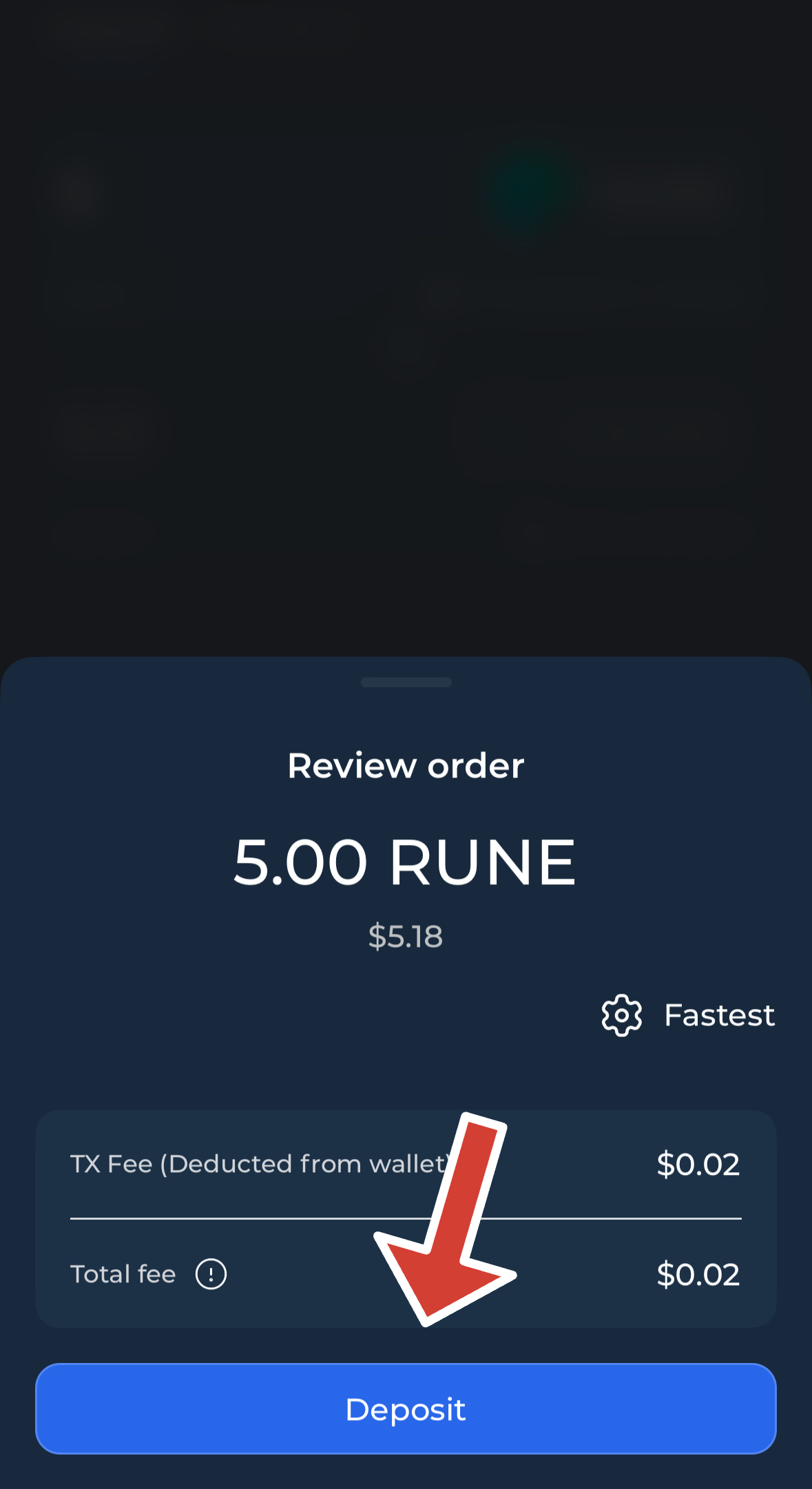
* Review the transaction details carefully on the next screen.
* When ready, tap **"Deposit"** to complete the process.
#### 5. Transaction Completion
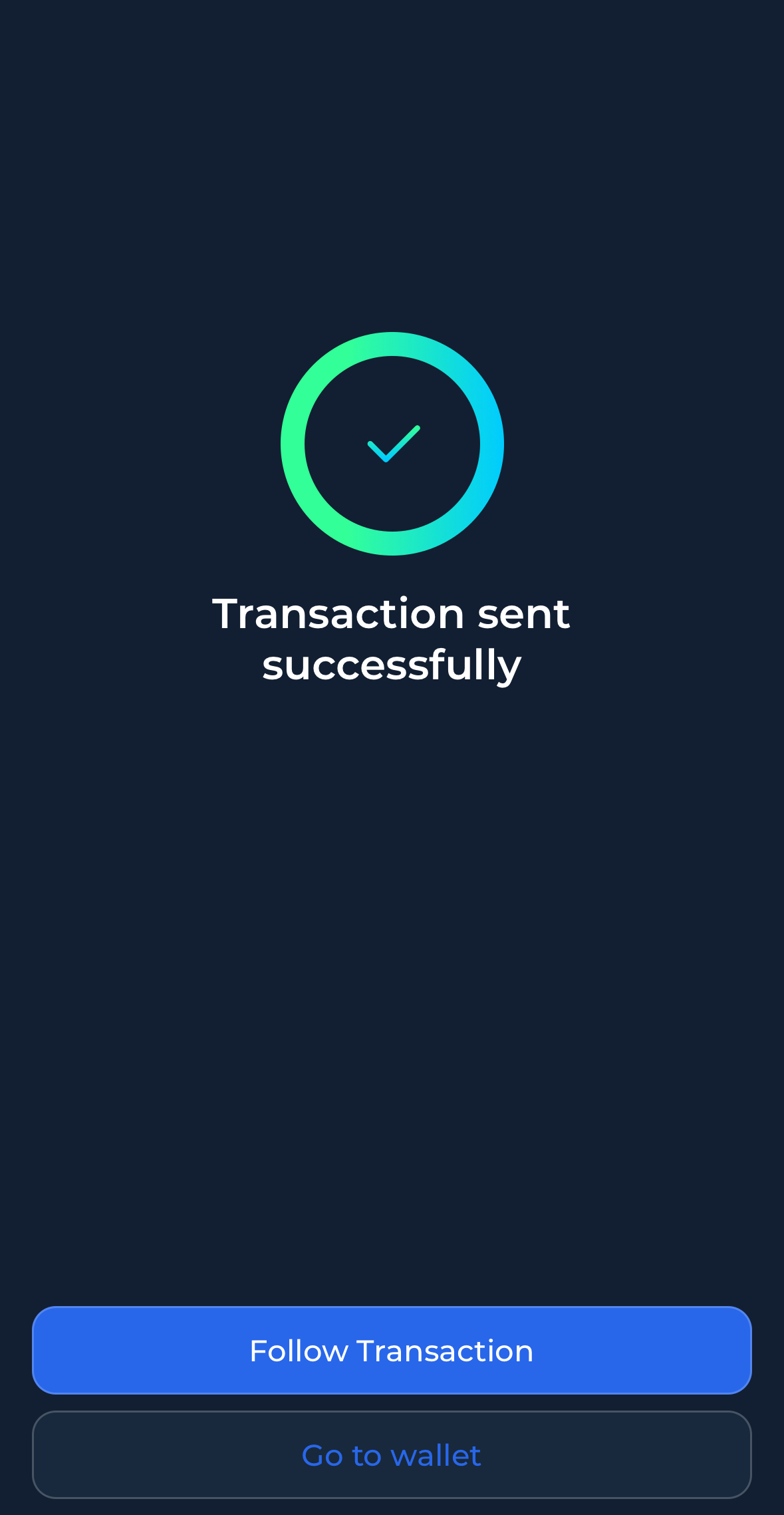
* After the transaction is successfully processed on the network, you’ll receive confirmation.
* To view your liquidity positions, go to **Earn -> Pools.**